Switching to a new Samsung phone just got a whole lot smoother. With the latest One UI 9 update, the company has revamped its Smart Switch app, making it more intuitive and capable of transferring a broader range of data than ever before. Whether you’re upgrading from an older Galaxy or making the leap from an iPhone, this new version aims to eliminate the usual headaches associated with moving your digital life.
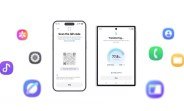
The most noticeable change is the simplified setup process, especially for iPhone users. Gone are the days of manually downloading and configuring a separate app on your iOS device. Now, the Android side of Smart Switch generates a quick response (QR) code that you can scan directly with your iPhone’s camera. After confirming a few straightforward options, the transfer begins—no extra installations required. This streamlined approach not only saves time but also reduces the technical barriers that often deter people from switching platforms.
Beyond the easier onboarding, the updated Smart Switch significantly expands what it can copy. Previously, you might have had to manually transfer certain settings or use third-party tools for specific data types. Now, the app handles a much richer set of information, including your saved passwords and passkeys, call history, and even accessibility settings. This means your new phone can feel like your old one from the moment you switch it on, with your preferences and credentials already in place.
For those who are deeply invested in the Samsung ecosystem, this update is a welcome step forward. It reflects a broader trend in mobile technology toward seamless, user-friendly data migration. But what exactly does this mean for you in practical terms? Let’s dive into the details of the new features and how they enhance the overall experience.
What’s New in Smart Switch for One UI 9?
The core objective of this update is to reduce friction during the phone-switching process. Samsung has focused on two main areas: simplifying the initial connection and broadening the scope of data that can be moved. Here’s a closer look at the key improvements.
QR Code Setup for iPhone Users
Previously, moving from an iPhone to a Samsung device required you to install the Smart Switch app on your iPhone from the App Store. While that wasn’t a monumental task, it added an extra step and could be confusing for less tech-savvy users. The new approach eliminates this entirely. On your new Samsung phone, you open Smart Switch, select the option to receive data from an iPhone, and the app displays a QR code. Simply point your iPhone’s camera at that code, and a prompt appears asking if you’d like to connect. After a quick confirmation, the transfer begins wirelessly.
This method is not only faster but also more secure, as it uses a direct connection rather than relying on a cloud intermediary. It also works with any iPhone model that supports QR code scanning, which includes virtually all modern iPhones. The entire process takes less than a minute to set up, and you can start moving your data almost immediately.
Expanded Data Transfer Capabilities
The real game-changer, however, is the expanded list of data types that Smart Switch can now handle. In addition to the standard items like contacts, photos, messages, and apps, the updated app now includes:
- Passwords and Passkeys: Your saved login credentials from Safari, Chrome, or other browsers can be transferred directly, so you don’t have to remember and re-enter them all.
- Call History: Your recent call logs, including missed, incoming, and outgoing calls, are moved over, preserving your communication history.
- Accessibility Settings: If you rely on specific accessibility features like screen readers, display magnification, or hearing aid compatibility, those settings are now carried over, ensuring your new device is immediately usable.
- Additional System Settings: Beyond accessibility, the app can also transfer various system preferences, such as Wi-Fi network details, display settings, and even some app-specific configurations.
This broader scope means less time spent manually configuring your new phone and more time enjoying it. For users who switch phones frequently, this is a significant quality-of-life improvement.
How Does the New Smart Switch Compare to Previous Versions?
To appreciate the update fully, it helps to understand what has changed from earlier iterations. Previous versions of Smart Switch were already functional, but they had limitations. For instance, transferring passwords often required you to use Samsung’s own browser or manually export/import CSV files. Call history was sometimes omitted, and accessibility settings were rarely included. The new version addresses these gaps by integrating more deeply with the Android operating system and leveraging modern APIs.
Another key difference is the user interface. The updated app features a cleaner, more guided flow that walks you through each step. It also provides real-time progress indicators, so you know exactly how much data has been transferred and how much time remains. This transparency reduces anxiety, especially when moving a large amount of data.
What About Moving from Another Android Phone?
While the QR code feature is highlighted for iPhone transfers, Android-to-Android transfers have also seen improvements. The process remains similar—you can use a USB cable for a faster transfer or go wireless. However, the expanded data types apply here as well, so you can move your passwords, call logs, and accessibility settings from any Android device, not just iPhones. This makes Smart Switch a versatile tool for all types of upgrades.
Why This Matters for Samsung Users
For anyone who has ever dreaded the process of setting up a new phone, this update is a breath of fresh air. It removes many of the small frustrations that can make switching devices feel like a chore. But beyond convenience, there are deeper implications.
Enhanced Security and Privacy
Transferring passwords and passkeys is a sensitive operation. Samsung has implemented robust encryption protocols to ensure that your credentials are securely transmitted from one device to another. The QR code method also reduces the risk of man-in-the-middle attacks, as the connection is established locally. This gives you peace of mind knowing that your sensitive information is protected throughout the process.
Accessibility for All Users
The inclusion of accessibility settings is particularly noteworthy. For individuals with disabilities, setting up a new phone can be a daunting task if they have to manually reconfigure screen readers, text size, or other assistive technologies. By automatically transferring these settings, Samsung is making its devices more inclusive and user-friendly. This aligns with the company’s broader commitment to accessibility and ensures that no user is left behind.
Time and Effort Savings
On average, setting up a new phone can take anywhere from 30 minutes to a couple of hours, depending on how much data you have. With the updated Smart Switch, much of that time is eliminated. You can literally scan a QR code, wait a few minutes for the transfer to complete, and then pick up your new phone as if it were your old one. This is especially valuable for business users who can’t afford downtime.
Step-by-Step Guide to Using the New Smart Switch
If you’re ready to take advantage of these improvements, here’s a simple walkthrough for both iPhone and Android users.
For iPhone to Samsung Transfer
- On your new Samsung phone, go to Settings > Accounts and Backup > Smart Switch, or open the Smart Switch app directly.
- Select “Receive data” and choose “iPhone” as the source device.
- The app will display a QR code on your Samsung screen.
- On your iPhone, open the camera app and scan the QR code.
- A prompt will appear on your iPhone asking if you want to connect to the Samsung device. Tap “Connect.”
- Follow the on-screen instructions to grant necessary permissions and select the data types you want to transfer.
- Wait for the transfer to complete. The time will depend on the amount of data.
For Android to Samsung Transfer
- On your new Samsung phone, open Smart Switch.
- Choose “Receive data” and select “Android” as the source.
- You can either connect via USB cable or wirelessly. For USB, use the provided cable and follow the prompts. For wireless, both phones need to be on the same Wi-Fi network.
- Once connected, select the data you wish to transfer and hit “Transfer.”
- After completion, your new phone will restart with all your data in place.
Potential Limitations and Considerations
While the updated Smart Switch is a significant improvement, it’s not without its limitations. For instance, not all apps will have their data transferred. Some apps, especially those with heavy server-side dependencies, may require you to log in again. Additionally, while passwords are transferred, you may need to re-authenticate with biometrics or two-factor authentication on the new device for security reasons.
Another consideration is the transfer speed. Wireless transfers can be slower than wired ones, especially if you have a large amount of data. Samsung recommends using a USB cable for the fastest experience, but the QR code method is inherently wireless, so you’ll need to be patient if you’re moving many gigabytes of photos and videos.
Lastly, the new Smart Switch is only available on devices running One UI 9. If you have an older Samsung phone that hasn’t received the update, you won’t be able to use these new features. However, Samsung has a good track record of rolling out updates to a wide range of devices, so it’s likely that most recent models will get it.
What Does the Future Hold for Smart Switch?
Samsung has made it clear that it views Smart Switch as a critical component of its ecosystem. The company is likely to continue refining the app, possibly adding support for more data types, such as health data from Apple Health or Samsung Health, or even smart home configurations. There’s also speculation about deeper integration with Samsung’s cloud services, which could allow for even more seamless transitions between devices.
For now, the updated Smart Switch represents a major leap forward in phone migration technology. It’s a testament to Samsung’s commitment to user experience, and it sets a new standard that other manufacturers may soon follow.
Conclusion
In summary, the revamped Smart Switch app in One UI 9 is a welcome upgrade for anyone planning to switch to a new Samsung phone. Its simplified QR code setup for iPhone users and expanded data transfer capabilities—including passwords, call history, and accessibility settings—make the process faster, easier, and more comprehensive than ever before. Whether you’re a seasoned tech enthusiast or a casual user, this update ensures that your transition to a new device is as smooth as possible. So the next time you’re ready for an upgrade, rest assured that Samsung has your back, making the switch a breeze.